
← All how-tos
How to add a stop
Adding a stop to the active trip in eDriver: address, date and time – in three steps. Stops appear in the trip timeline.
Updated:
Steps
- 1
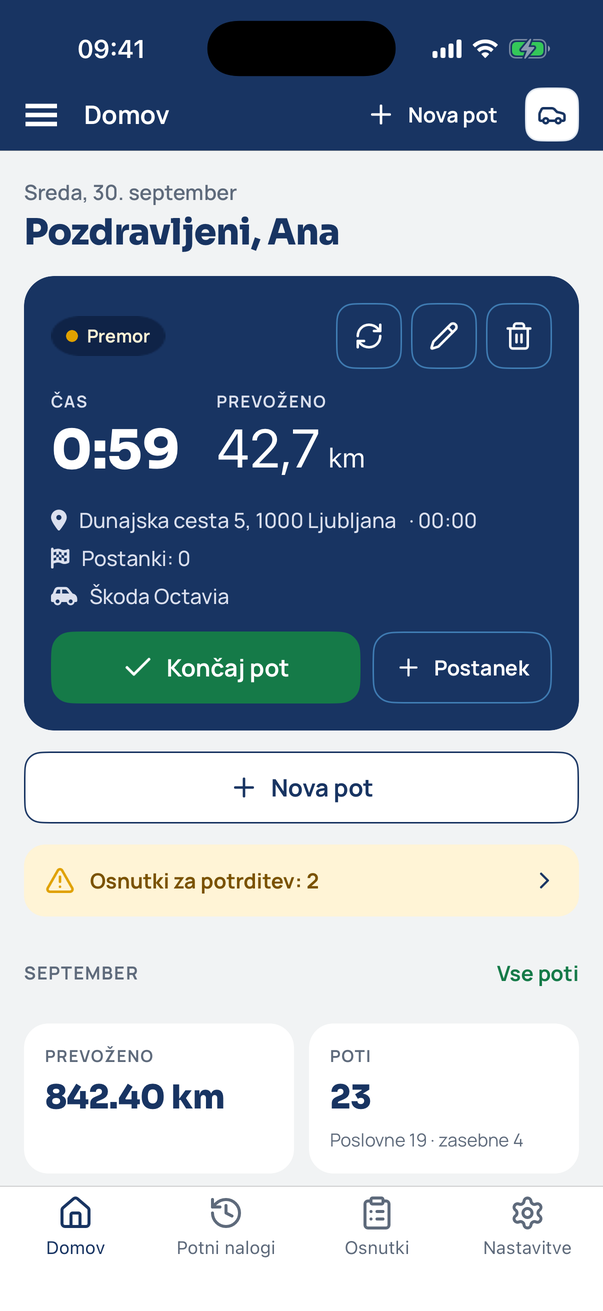
Tap Stop
On the active-trip card on Home, tap Stop.
- 2
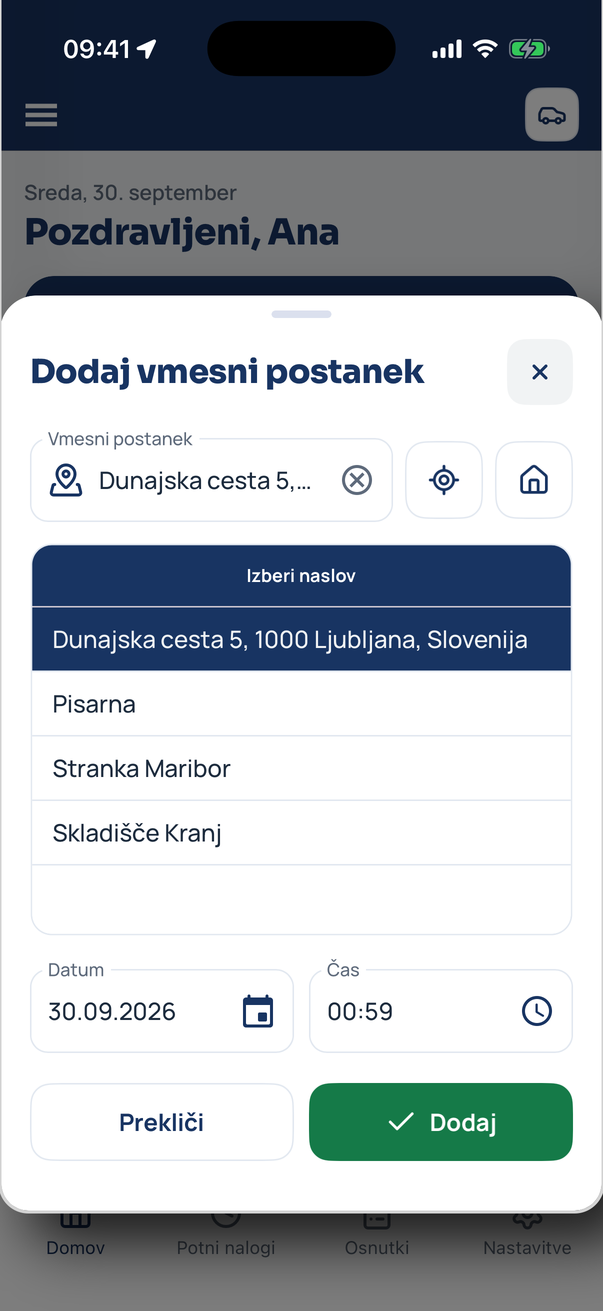
Pick the stop address
Tap a saved address or type a new one. You can adjust the stop’s date and time. Tap Add.
- 3
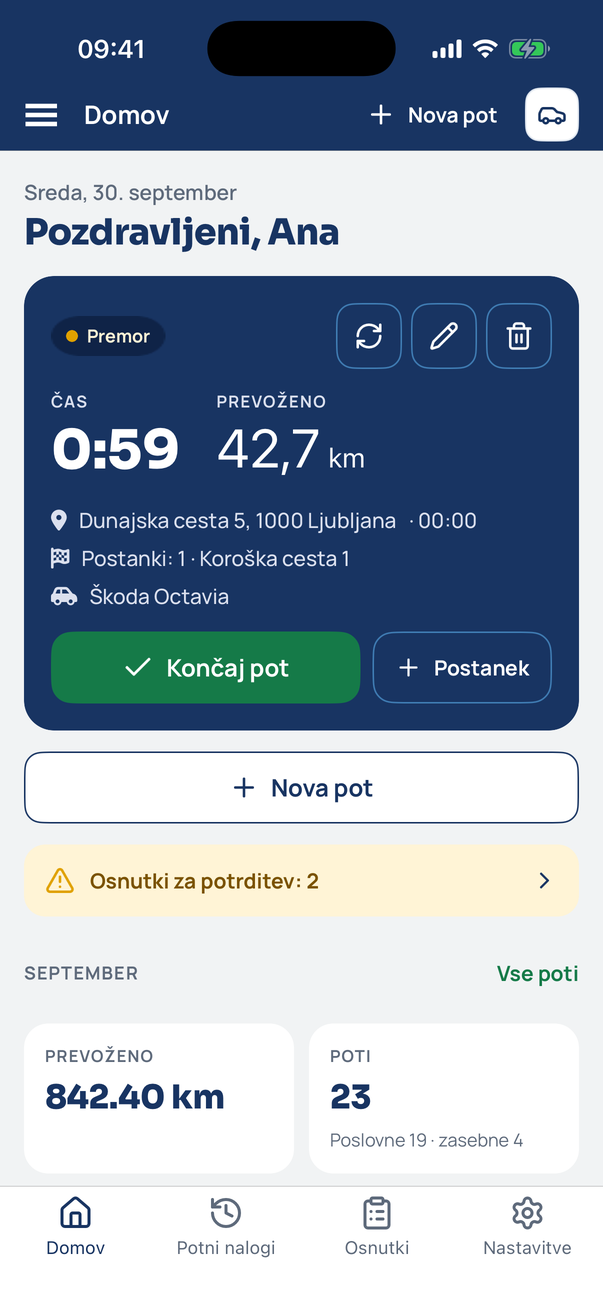
The stop is added
The trip card now shows the number of stops and the latest one. All stops appear in the trip timeline in the summary.
Tip
You can also add stops later in the trip editor if you forgot them while driving.
Related how-tos
Try eDriver free for 14 days – no card needed.
Start free trial