
How to finish a trip
Finishing a trip in eDriver: destination, distance check, the summary with the purpose, and saving it as a travel order – in five steps.
Updated:
Steps
- 1
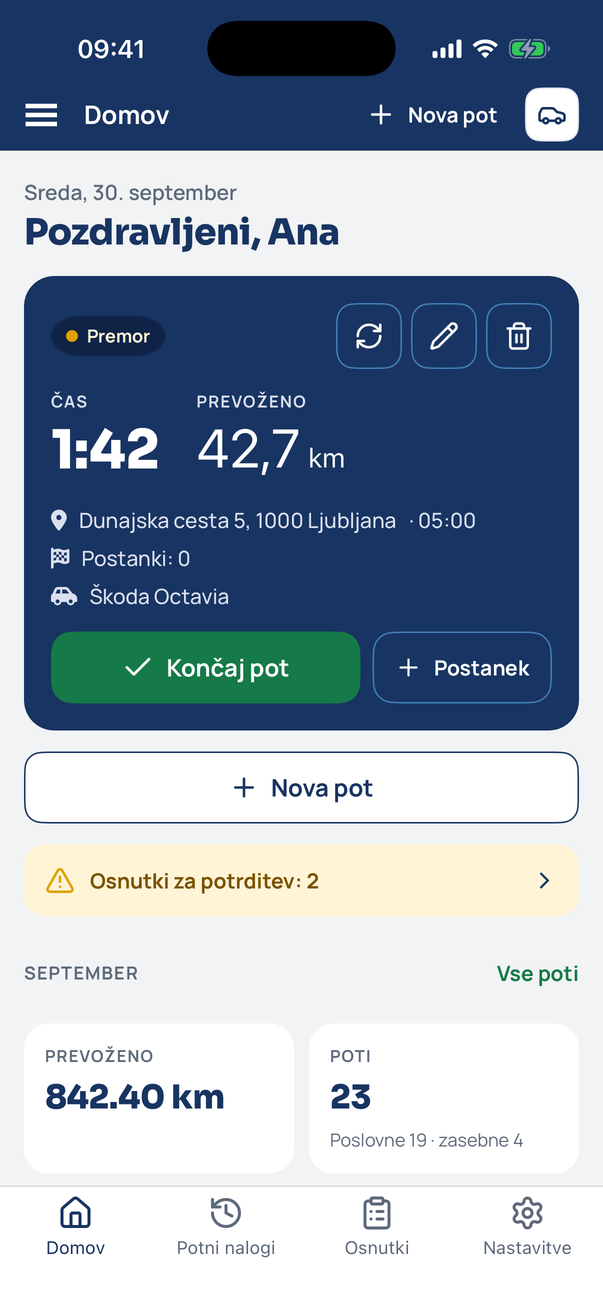
Tap Finish trip
On Home or on the active-trip screen, tap Finish trip.
- 2
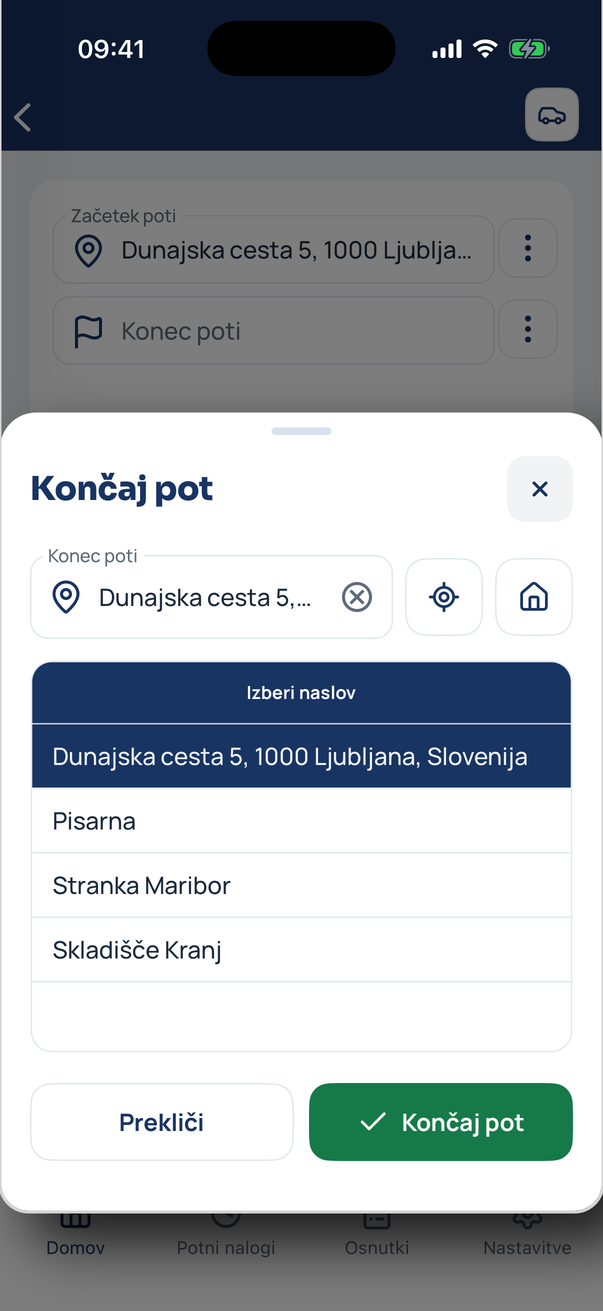
Pick the destination
Tap a saved address (e.g. a customer) or type an address. The location button uses your current position.
- 3
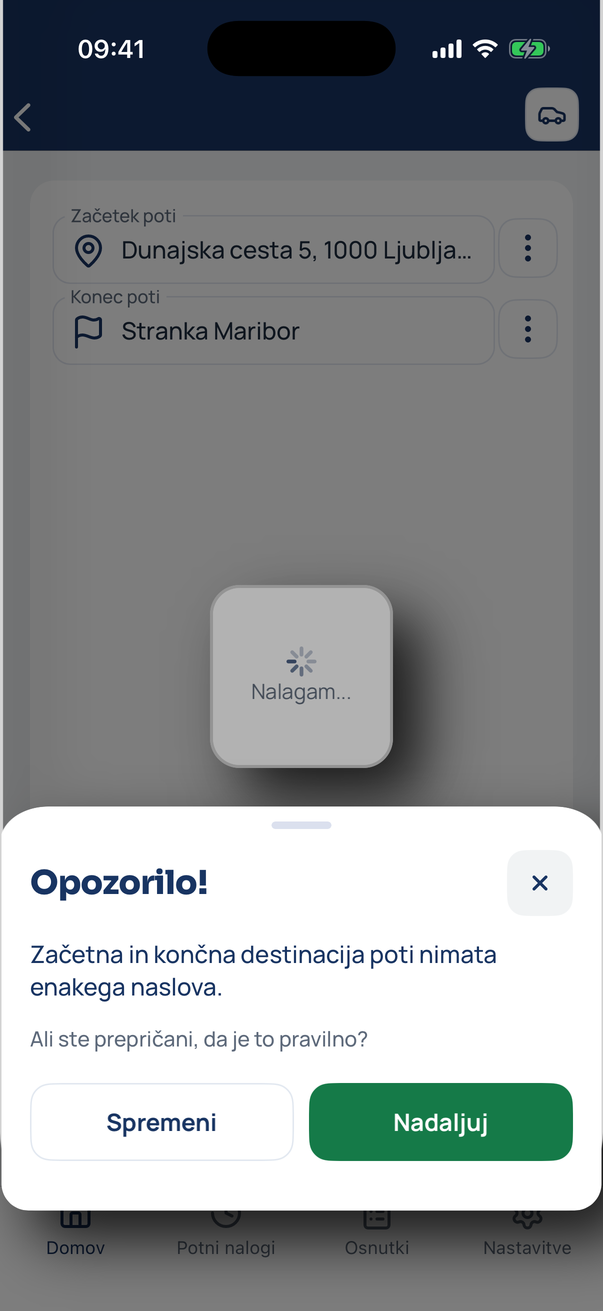
Check the warning
If the start and end address differ, the app says so – for a one-way trip tap Continue.
- 4
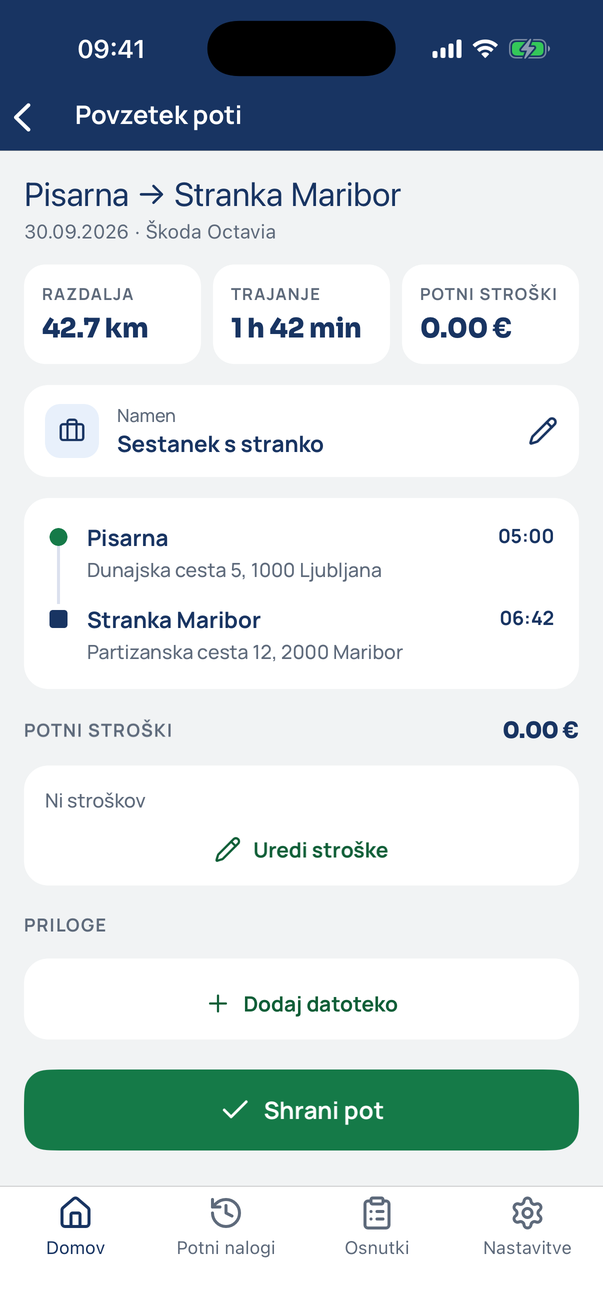
Review the summary
The summary shows distance, duration, purpose, the route (start, stops, destination), expenses and attachments. Edit the purpose with the pencil.
- 5
Save the trip
Tap Save trip. The trip is now in the Travel orders tab and in the monthly export for your accountant.
Tip
The purpose is pre-filled from the saved address’s default purpose. Set it once on the address and you won’t type it for every trip.
Related how-tos
Try eDriver free for 14 days – no card needed.
Start free trial