
← All how-tos
How to confirm a draft
Trips the eDriver app detects automatically are saved as drafts. How to review them and confirm each one with one tap, in four steps with screenshots.
Updated:
Steps
- 1
Open the drafts
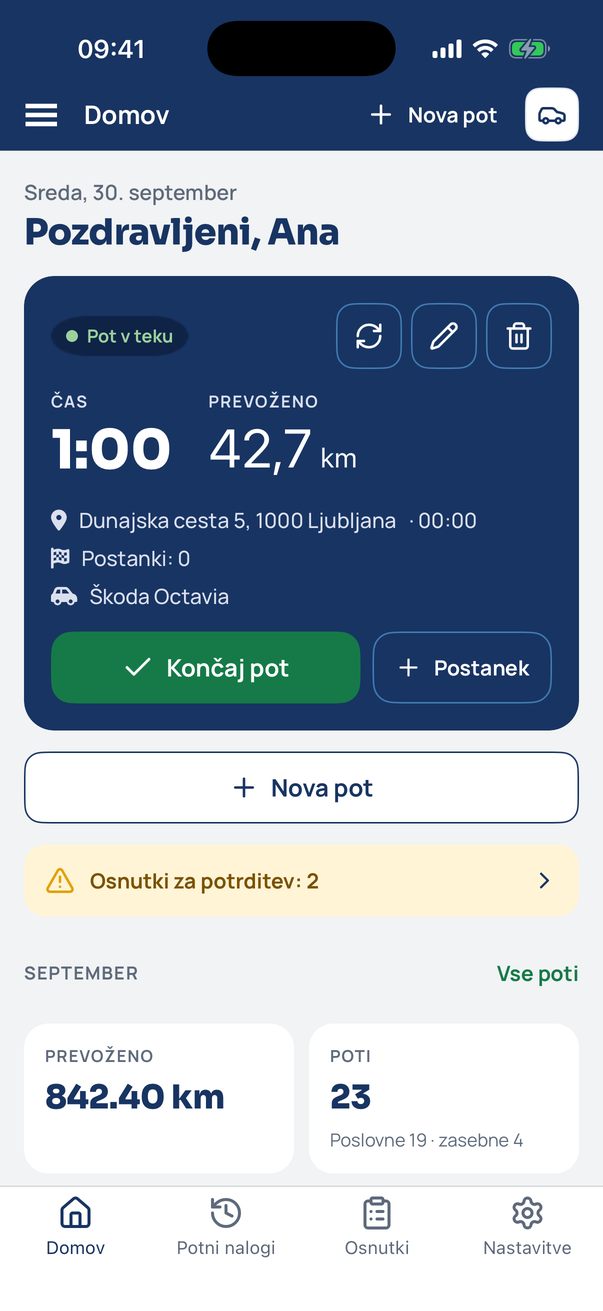
Home tells you how many drafts are waiting. Tap the notice or the Drafts tab.
- 2
Review the draft
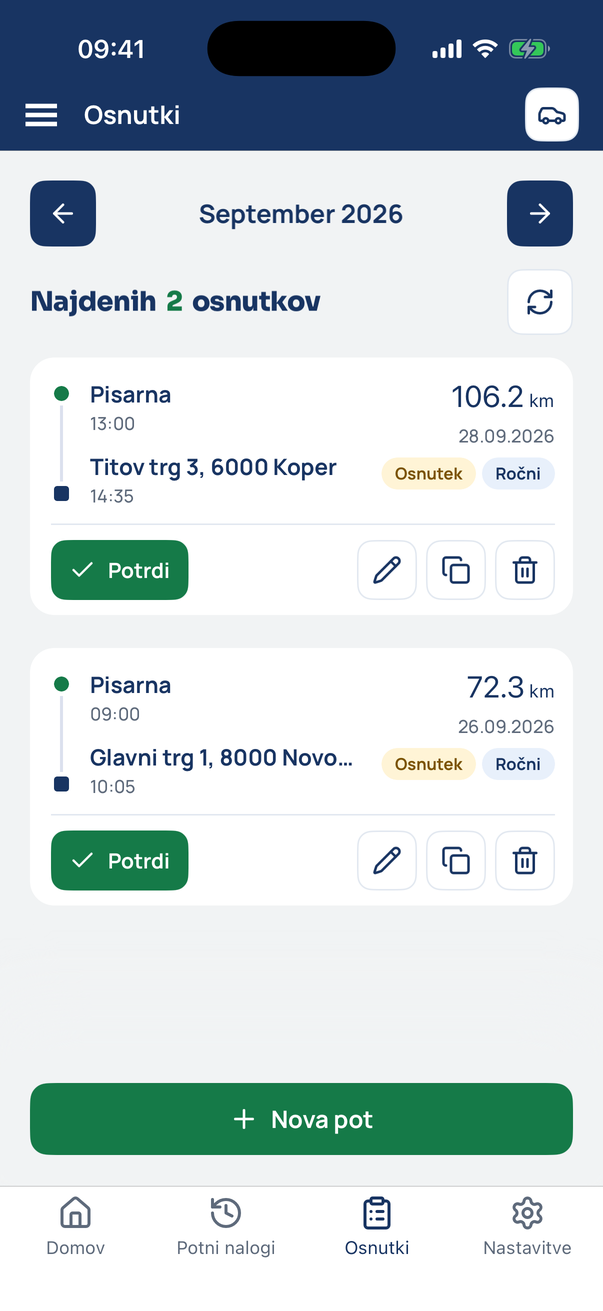
Each card shows start, destination, time and kilometres. If the purpose is missing the card says so – edit it with the pencil.
- 3
Confirm
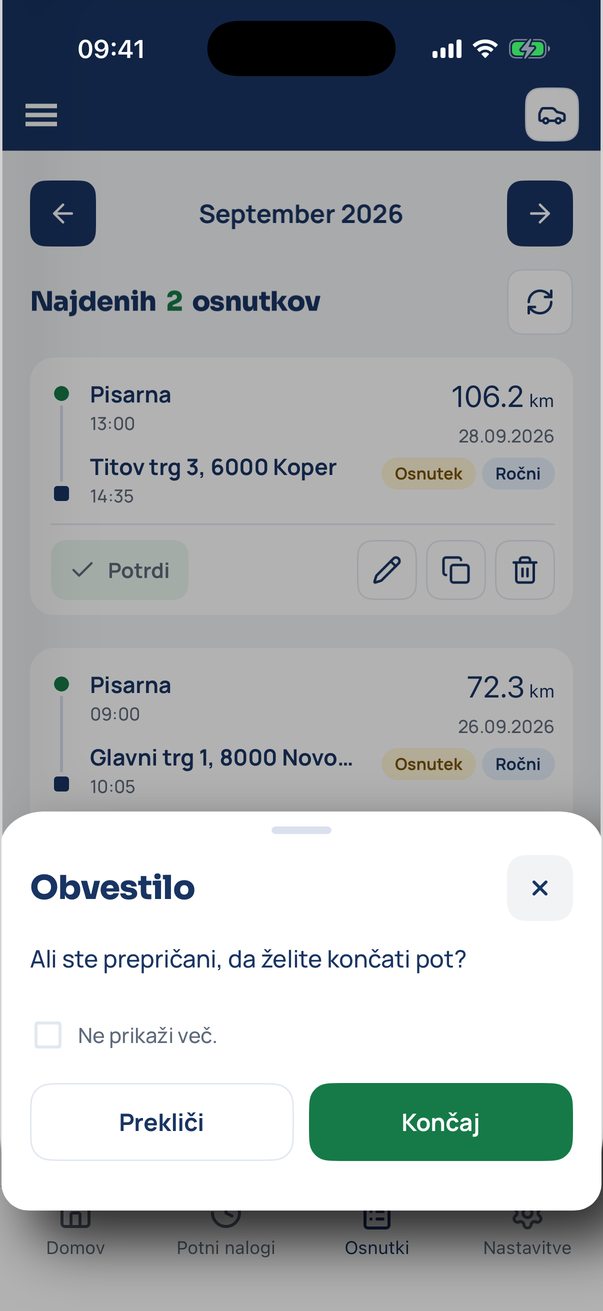
Tap Confirm and answer the question. You can switch the question off in settings (Confirm draft completion manually).
- 4
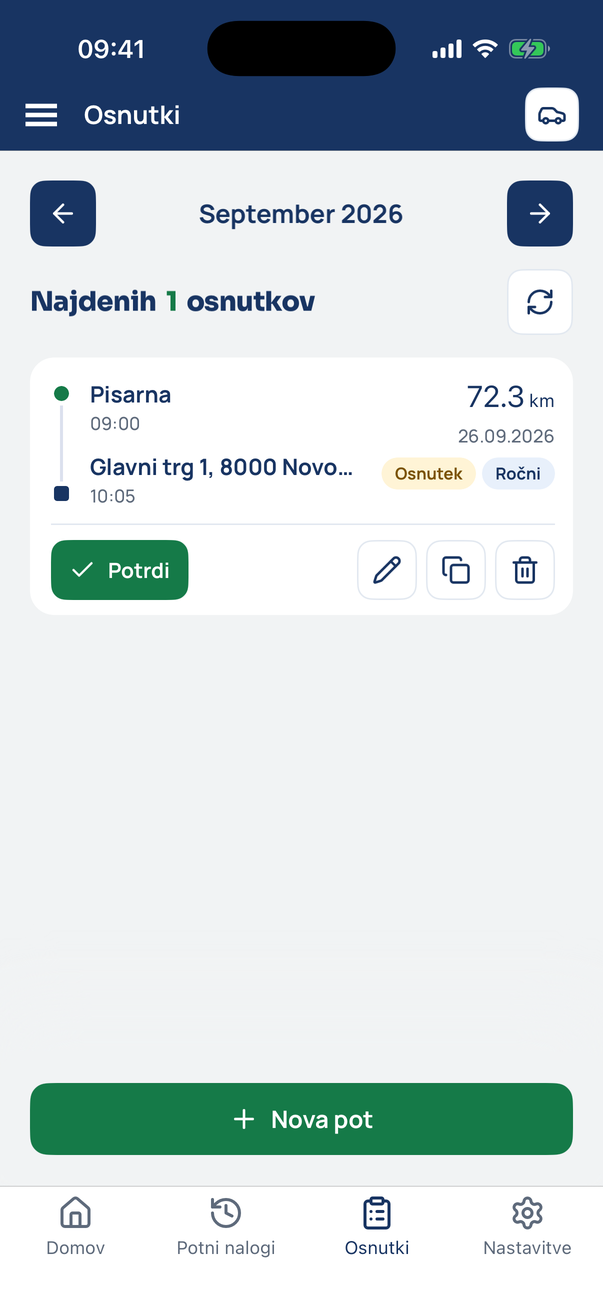
The draft is a travel order
The trip leaves the drafts and appears among the travel orders and in the monthly export.
Tip
Drafts can also be copied or deleted with the icons on the card.
Related how-tos
Try eDriver free for 14 days – no card needed.
Start free trial