
How to add a note to a stop
A note on a stop in eDriver: add it during the trip or later on a completed travel order. The note is also printed next to the stop in the Excel export.
Updated:
Steps
- 1
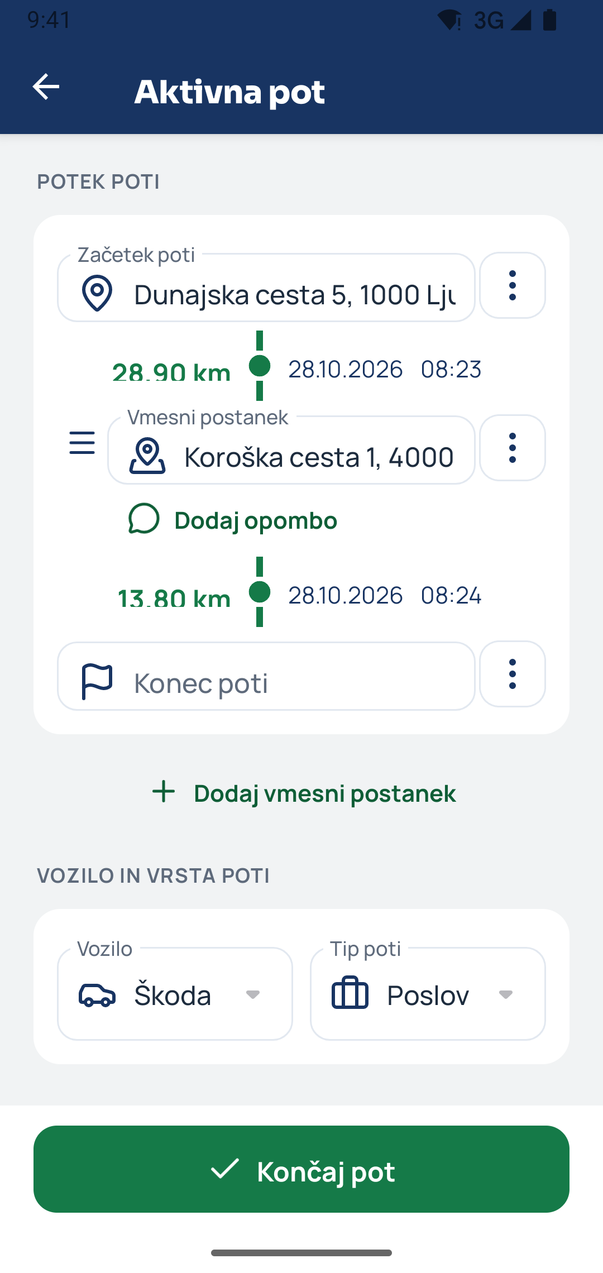
Open the active trip
On the active-trip card on Home tap End route. Route in progress opens; the trip only ends when you tap End route there again. Every stop has Add a note under it.
- 2
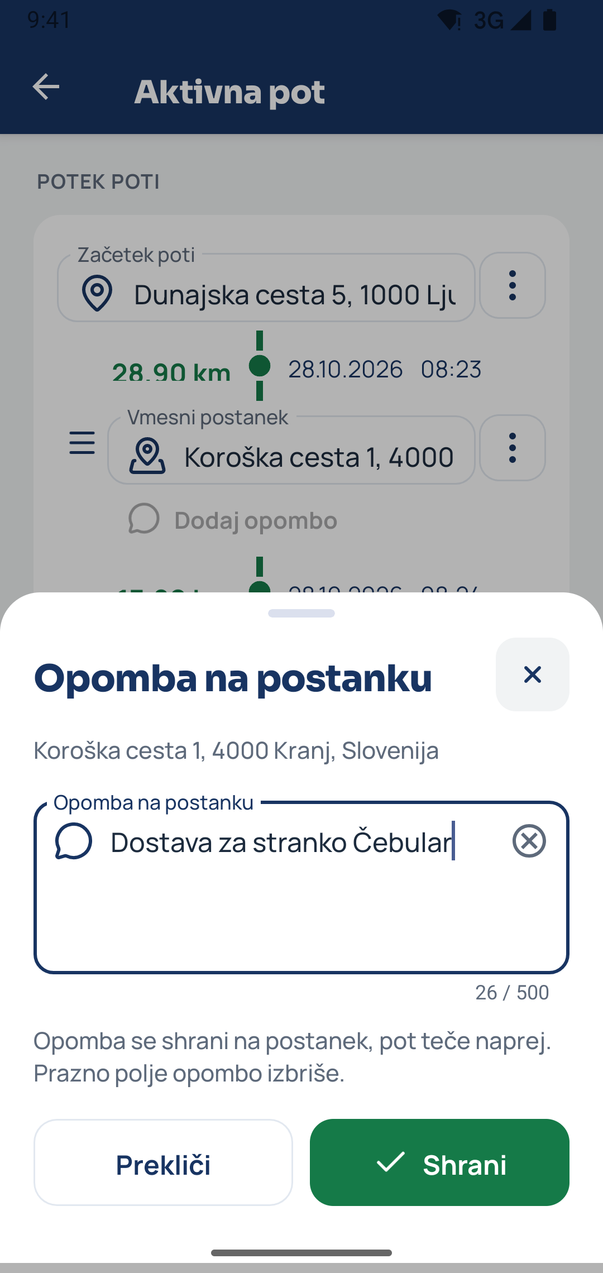
Write the note
Tap Add a note and type e.g. the reason for the visit, the client or an order number (500 characters at most). Tap Save. The note is saved on the stop and the trip keeps running.
- 3
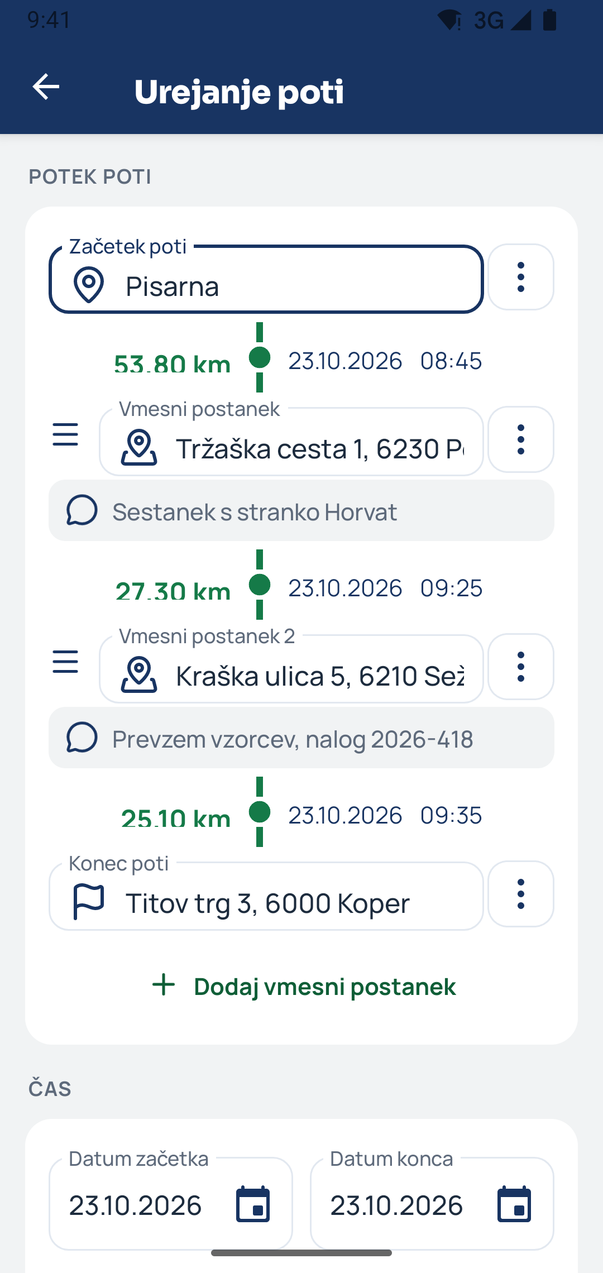
Add a note later
On a completed travel order open the order in Travel warrants and tap the trip timeline to open Route edit. Under each stop you can add a note or change the existing one.
- 4
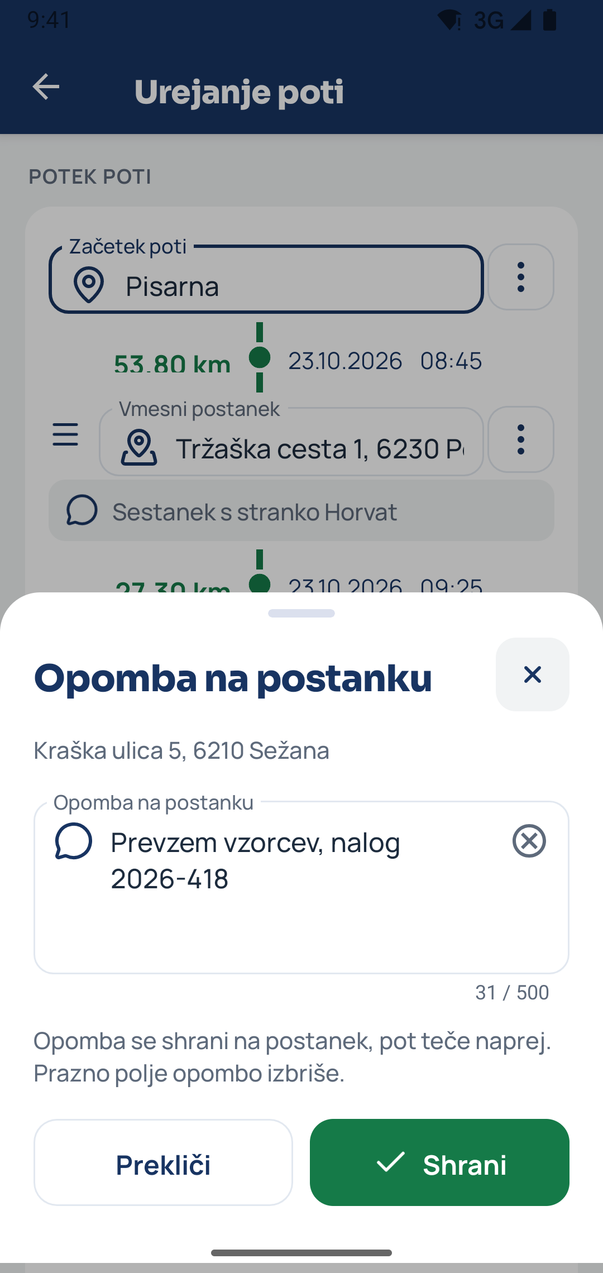
Change or delete a note
Tap the note and edit the text. If you empty the field and tap Save, the note is deleted. The note is also printed next to the stop in the travel order export to Excel.
Tip
You do not have to write the note straight away: once the trip is finished you can add it on the completed travel order.
Related how-tos
Try eDriver free for 14 days – no card needed.
Start free trial